Create Your First Free Minecraft Server (India Setup Guide)
A visual walkthrough for players and Discord communities in India: name a free Minecraft server, pick Vanilla and a game version, start it, and confirm friends can connect.
Open the Minecraft Server Creator
- Sign in to Ametistos and open Your servers.
- Select New serverto open the creation dialog.
- Have a short server name ready; it also becomes part of the connection address.
Name the Server
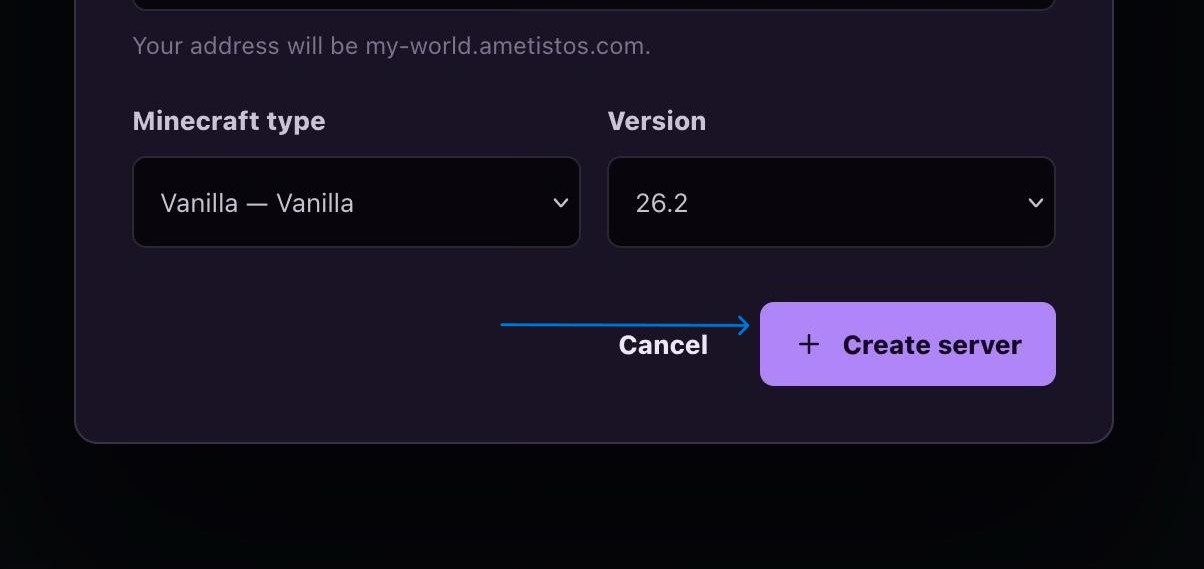
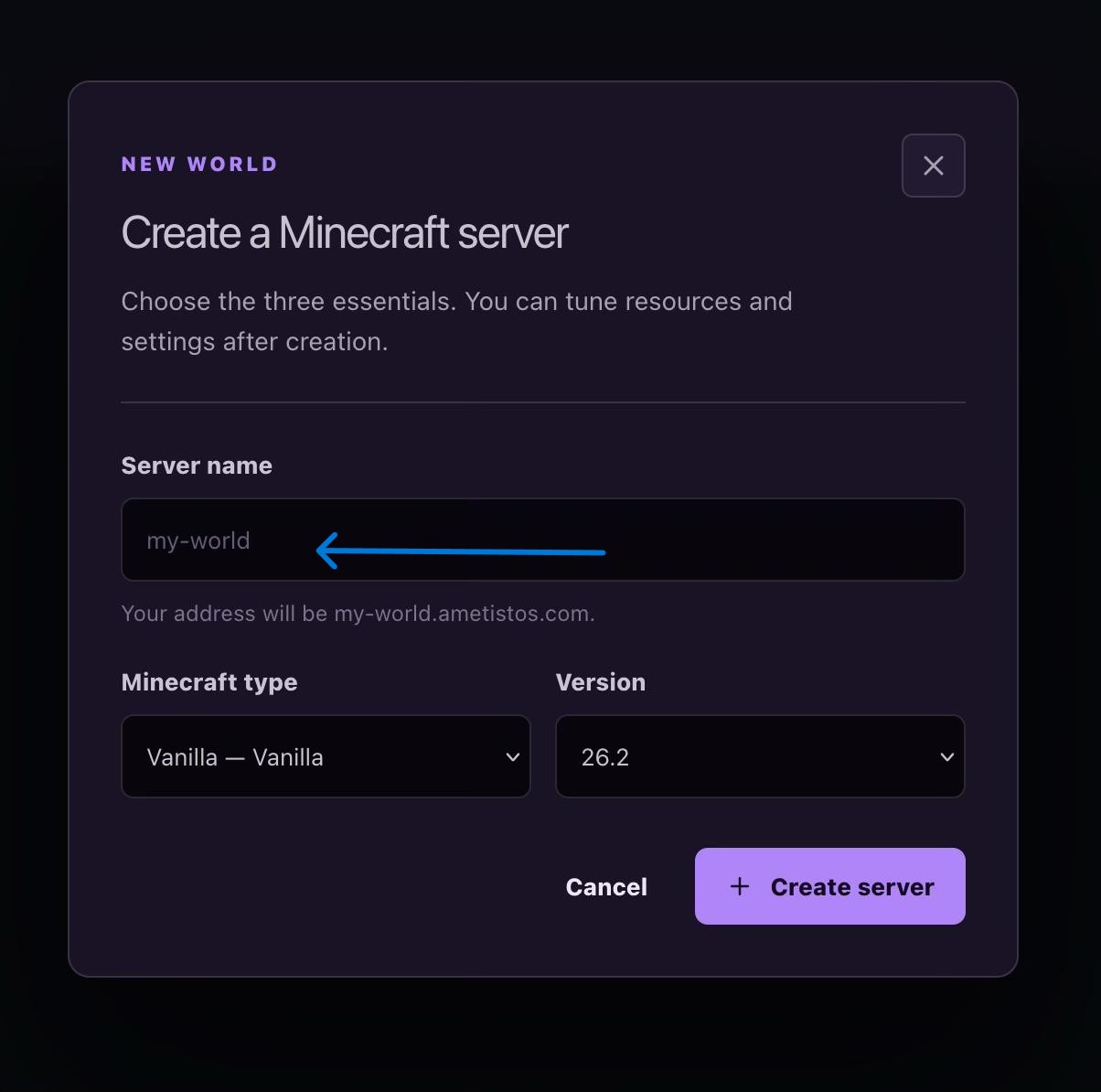
Enter a recognizable name without spaces or unusual punctuation. The preview below the field shows the
resulting name.ametistos.comaddress that you can share with your group straight away.
Select Vanilla and a Minecraft Version
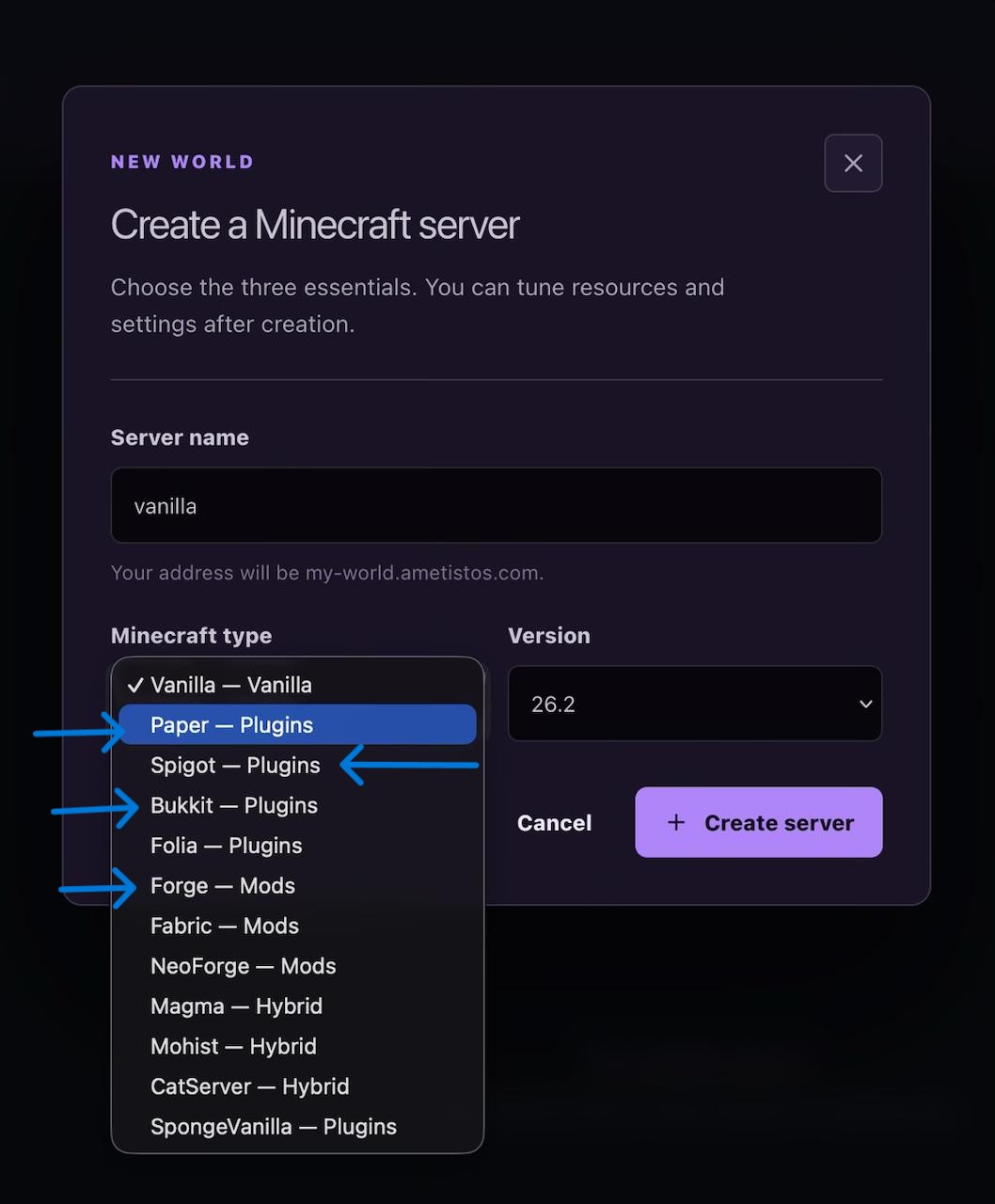
- Open Minecraft typeand select Vanilla.
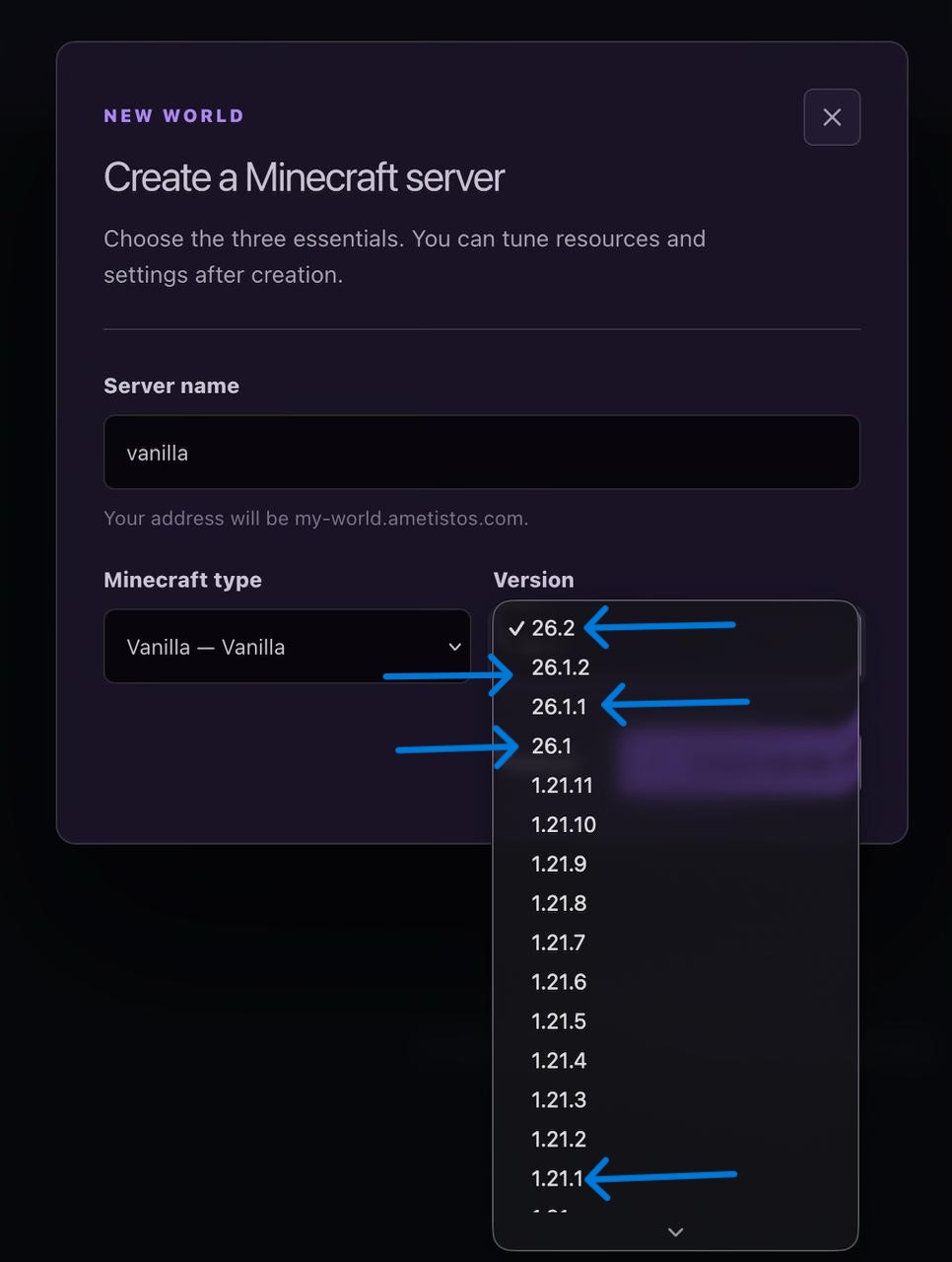
- Open Versionand choose the release your friends already play on.
- Select Create serverand wait for the server card to appear.
Start the Server and Share the Address
- Open the server card and check its address, software, version, and resources.
- Select Start. The button stays busy while the container starts.
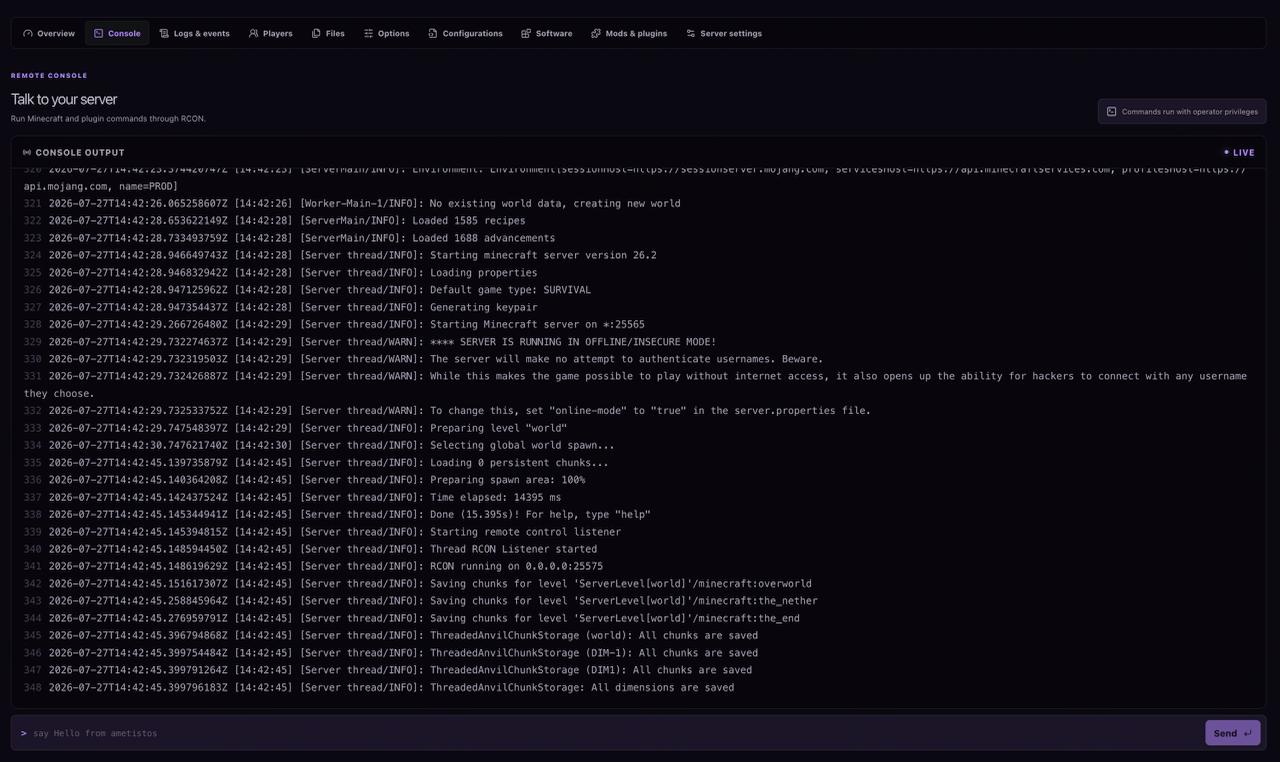
- Open Consoleand wait for the Minecraft "Done" message.
- Confirm the status changes to Online, then share the address with your group.
Stop the Server to Save Credits
Select Stopfrom Overview once the session ends, or turn on automatic stop so an empty server shuts down on its own. This keeps free hours and credits available for the next time your group gets online.