Minecraft Server Dashboard and Control Panel Guide
Learn where to find server status, resource usage, console output, files, gameplay options, software, and lifecycle controls in the Ametistos Minecraft server dashboard.
Open a Server from Your Dashboard
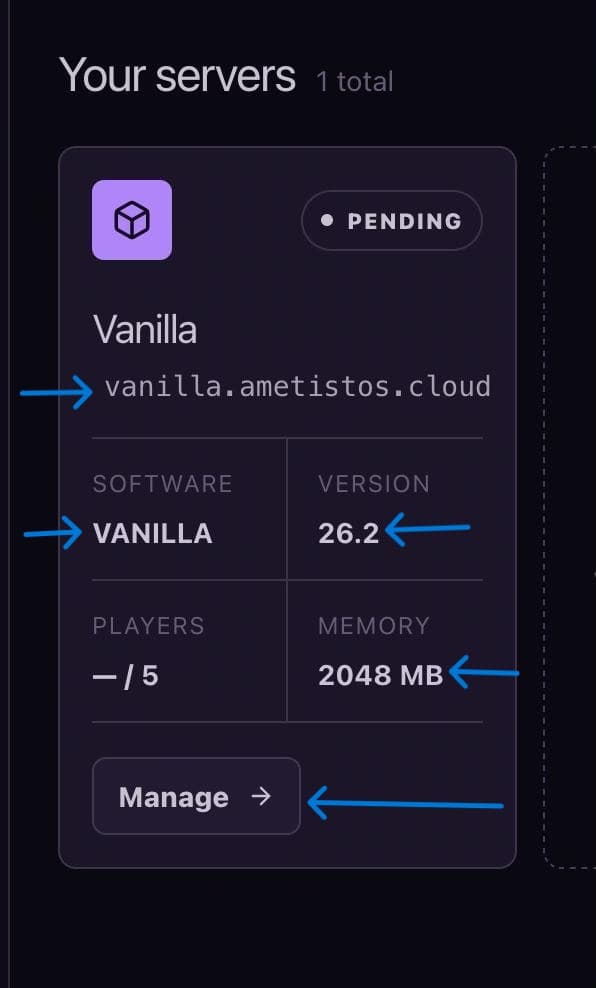
- Open Your servers.
- Review the address, status, software, version, players, and memory on the server card.
- Select Manage to open the complete server workspace.
Start, Stop, Restart, and Delete a Minecraft Server
- Start launches an offline server and changes its status when Minecraft is ready.
- Stop saves the world and shuts down the container.
- Restart safely applies software, plugin, mod, or property changes.
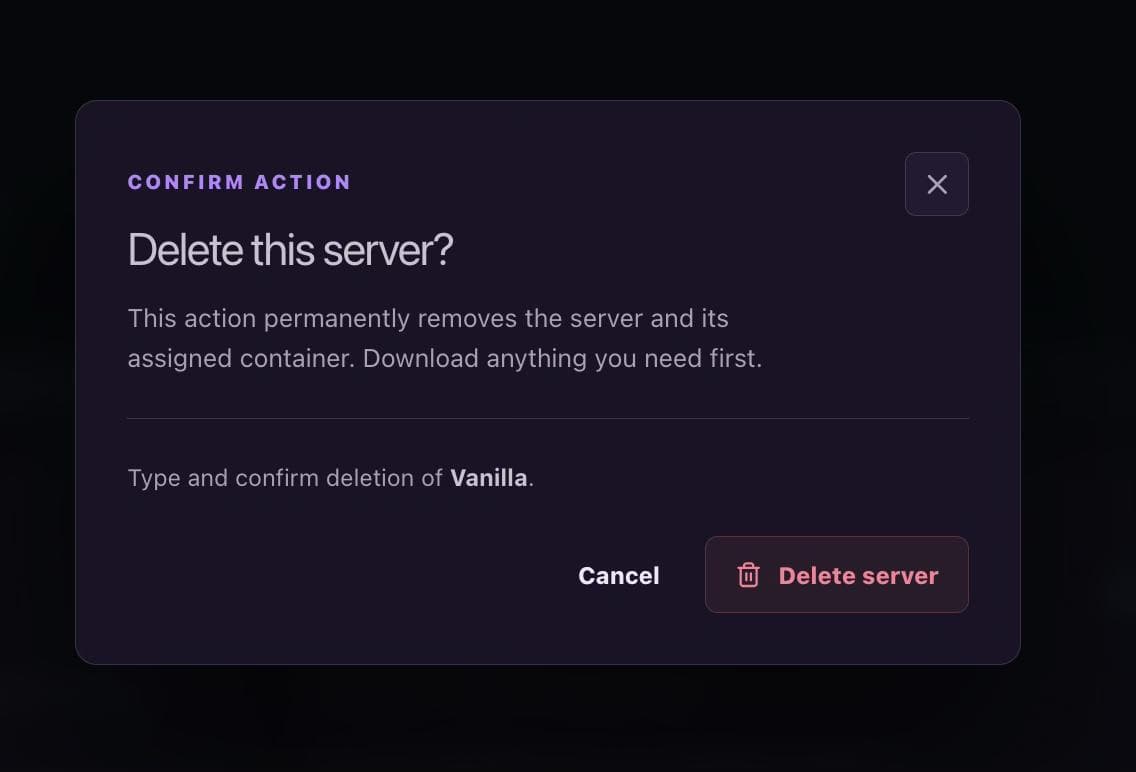
- Delete permanently removes the server after confirmation and cannot be reversed.
Monitor Live Resource Consumption
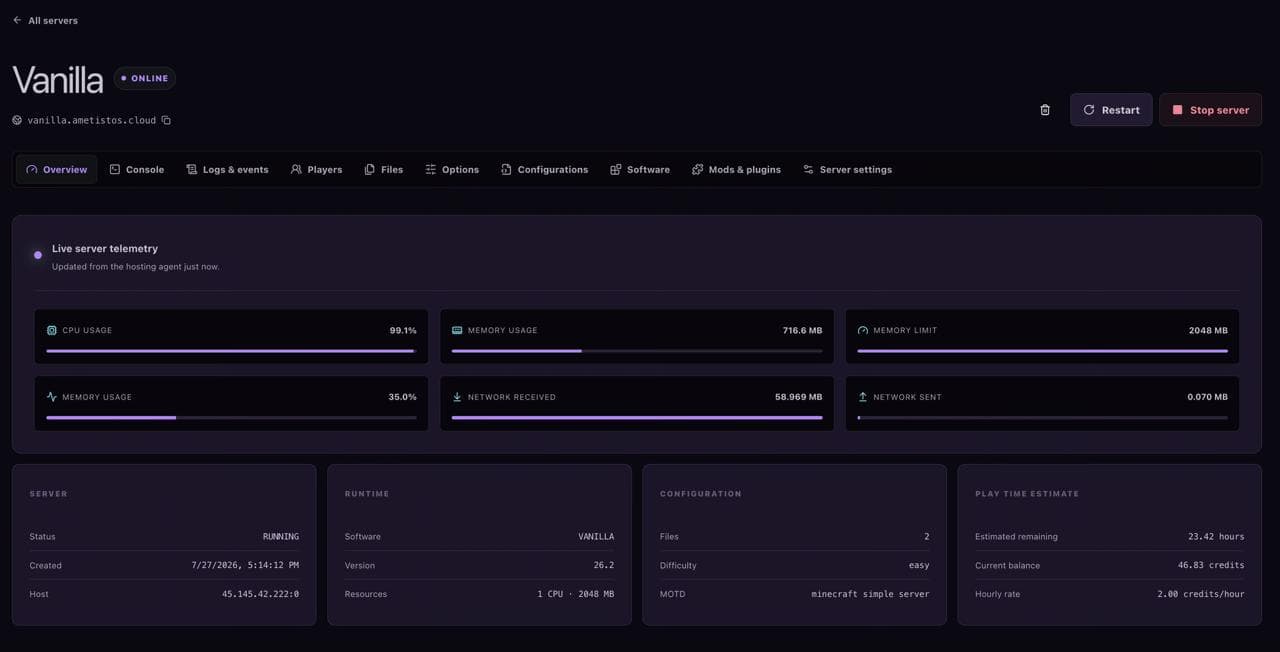
Overview displays CPU, memory, network, and storage activity only while the server is online. Compare current memory usage with the configured limit before increasing RAM.
Use Console, Logs, and Commands
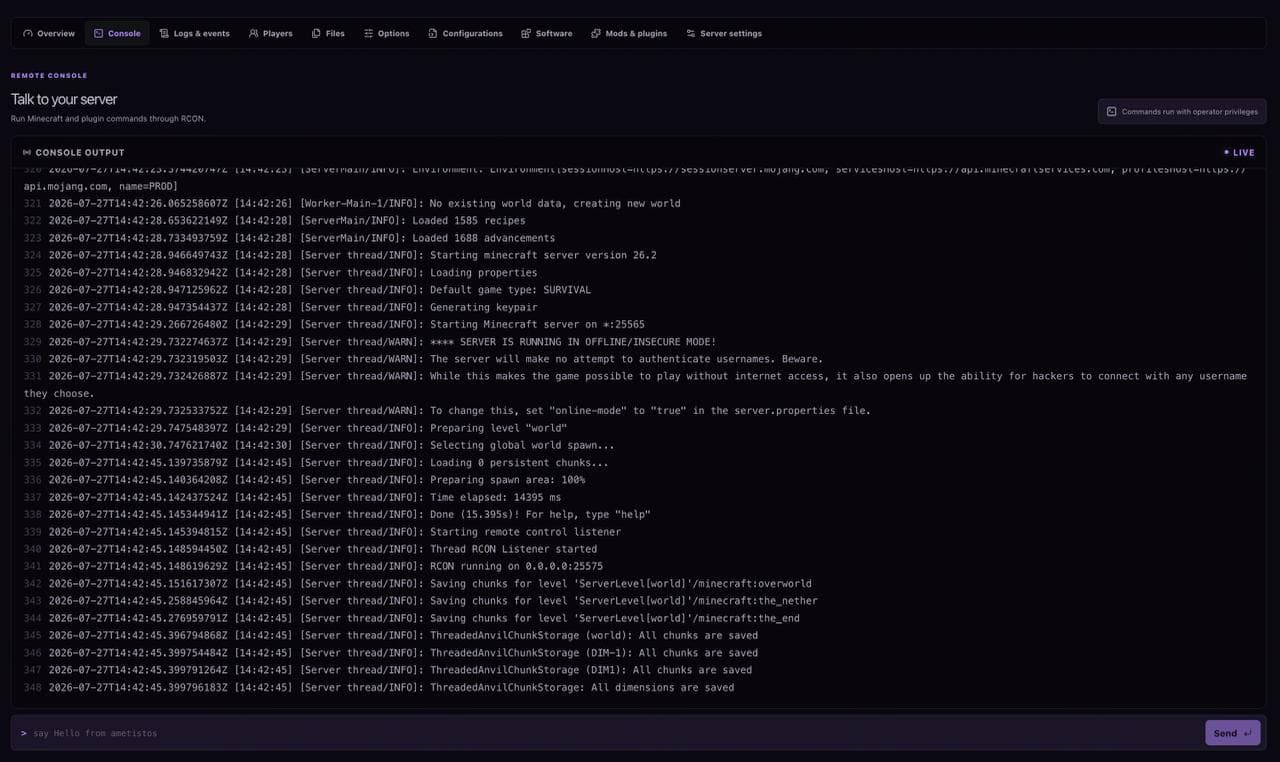
Console streams Minecraft output in real time and accepts administrative commands. Wait for the “Done” message during startup. Use Logs & events for historical diagnostics and run commands only when you understand their effect.
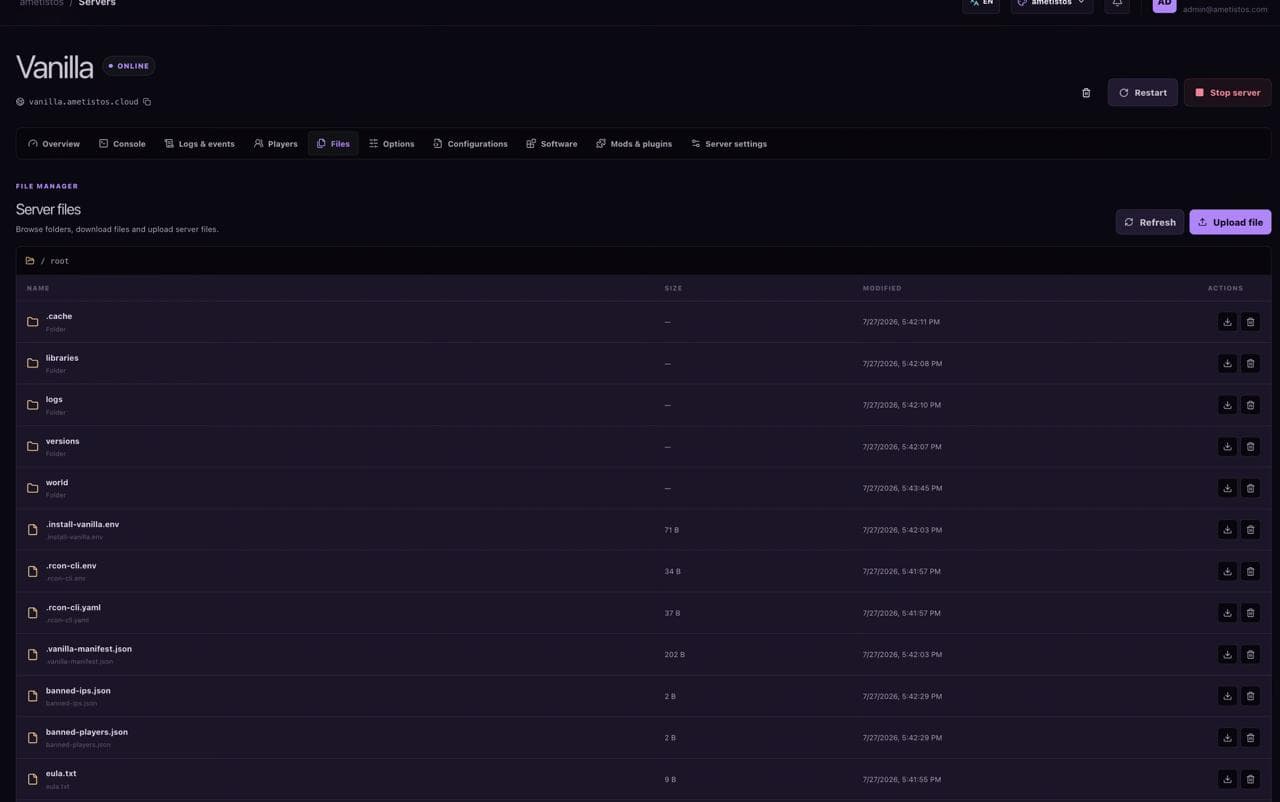
Manage Server Files
- Open Files; the current folder loads automatically.
- Select a folder to fetch its contents.
- Upload ZIP, JAR, JSON, properties, YAML, or YML files and follow the progress percentage.
- Download data before deleting it because file deletion cannot be undone.
Configure Software, Options, Resources, and Extensions
- Options contains common server.properties settings.
- Software changes the Minecraft platform or version with compatibility warnings.
- Mods & plugins searches compatible projects.
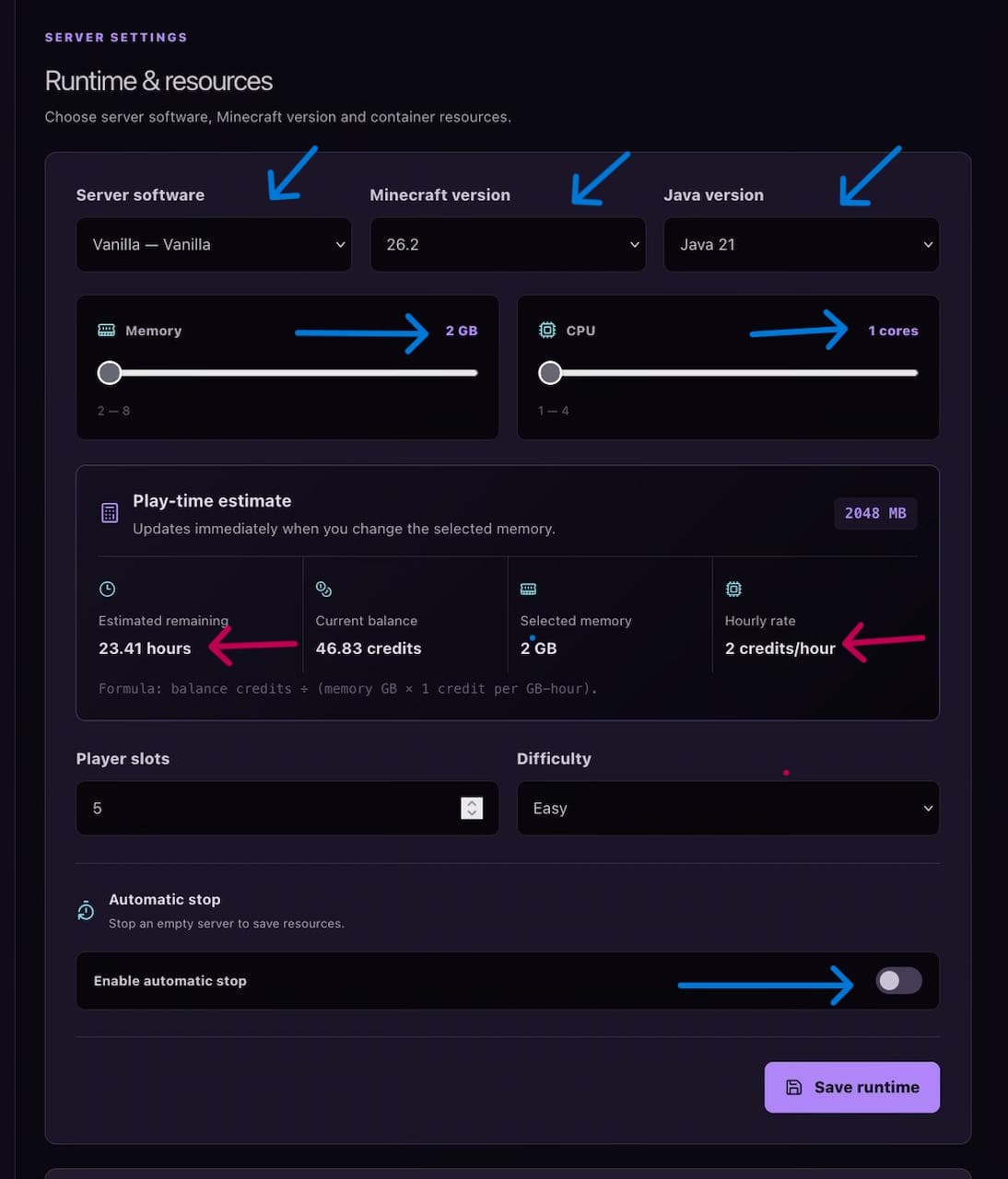
- Server settings controls Java, RAM, CPU, slots, difficulty, and automatic stop.
Continue with the server settings guide or the Paper plugin guide.