How to Manage Minecraft Players, Inventory, OP, Ban, and Whitelist
Use the Players tab to review known players, inspect Minecraft inventory and position data, and manage operator, ban, and whitelist status.
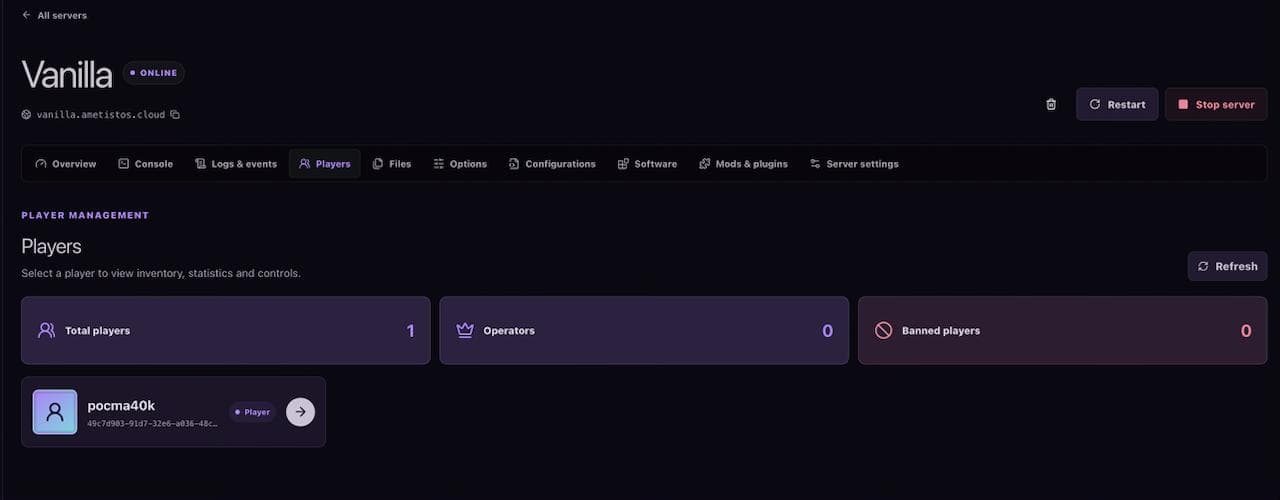
Open the Minecraft Players List
- Open a server and select Players.
- Wait for stored player data to load from the Minecraft world.
- Select a player card to open the complete profile.
Review Player Health, Position, Inventory, and Statistics
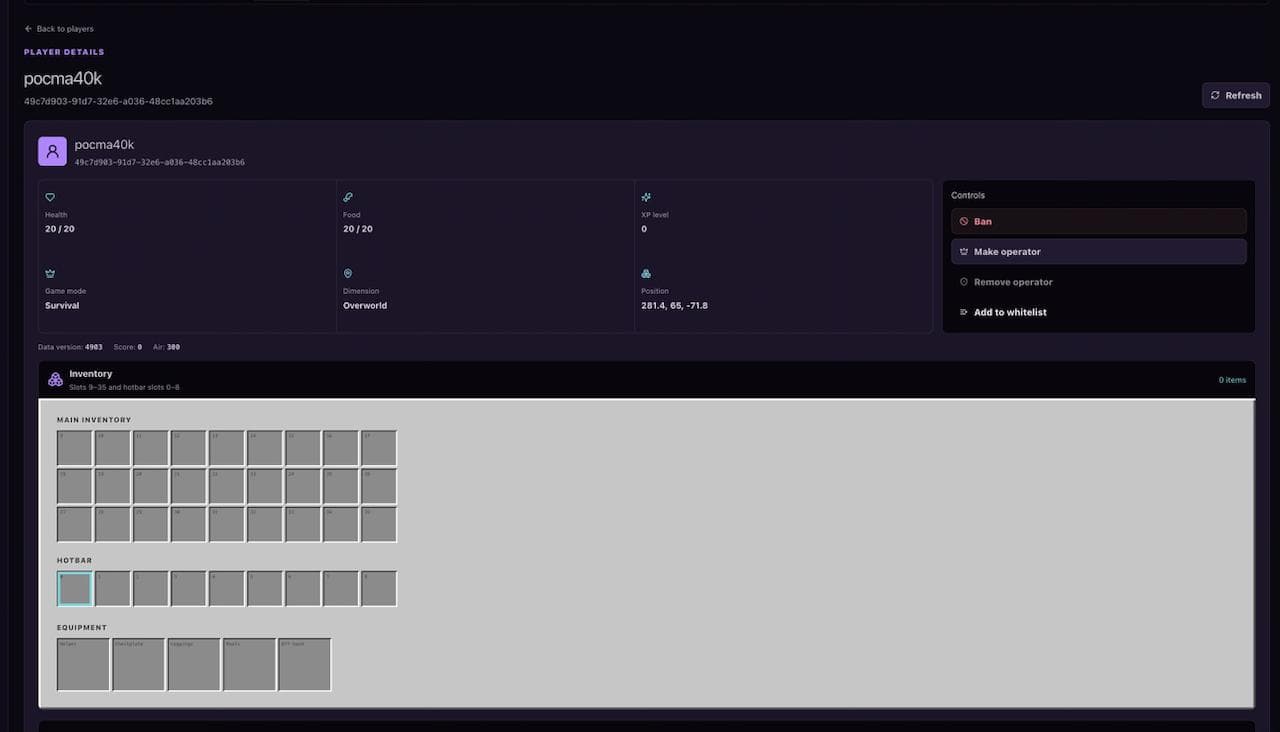
Player details include health, food, experience, game mode, dimension, coordinates, inventory slots, armor, Ender items, abilities, and available Minecraft statistics. Empty slots remain visible so the layout matches a familiar Minecraft inventory.
Use OP, Ban, and Whitelist Controls Safely
- Grant OP only to trusted administrators because it enables powerful commands.
- Use DEOP when operator access is no longer required.
- Use BAN to prevent a player from joining.
- Use the WHITELIST for private servers and add only approved players.
- Confirm command results in Console if the displayed state does not update immediately.