How to Install a Modrinth Modpack on a Minecraft Server
Install a Modrinth modpack from the Ametistos catalog by matching its Minecraft version, mod loader, Java version, and memory requirements. This walkthrough uses the Fabric Cobblemon pack as an example.
Check the Modpack Requirements First
- Open the modpack page on Modrinth and note its supported Minecraft versions.
- Check whether the pack requires Fabric, Forge, or NeoForge.
- Review the recommended Java version and server RAM.
- Confirm that every player will install the matching client-side modpack version.
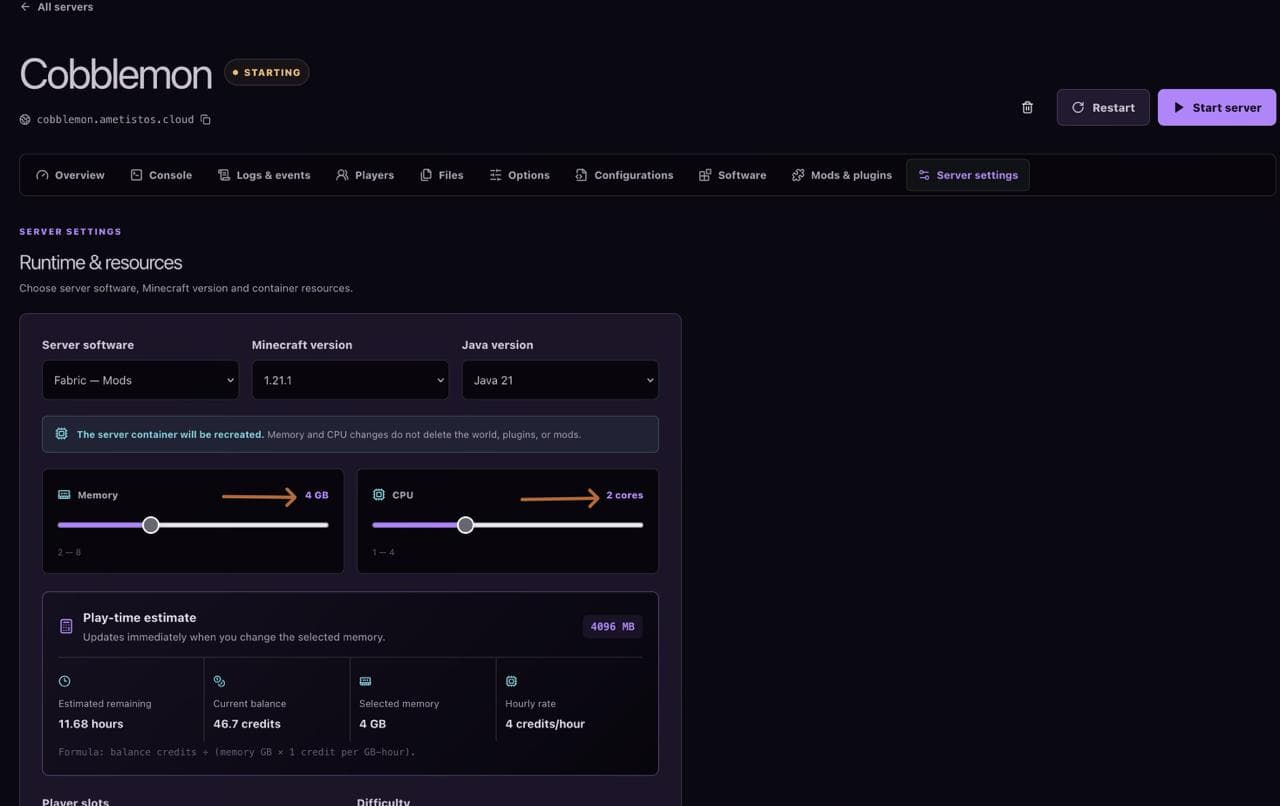
The Fabric 1.21.1, Java 21, 4 GB RAM, and 2 CPU values shown below are Cobblemon examples. Use the requirements published for your chosen modpack.
Create a Server with the Correct Minecraft Version
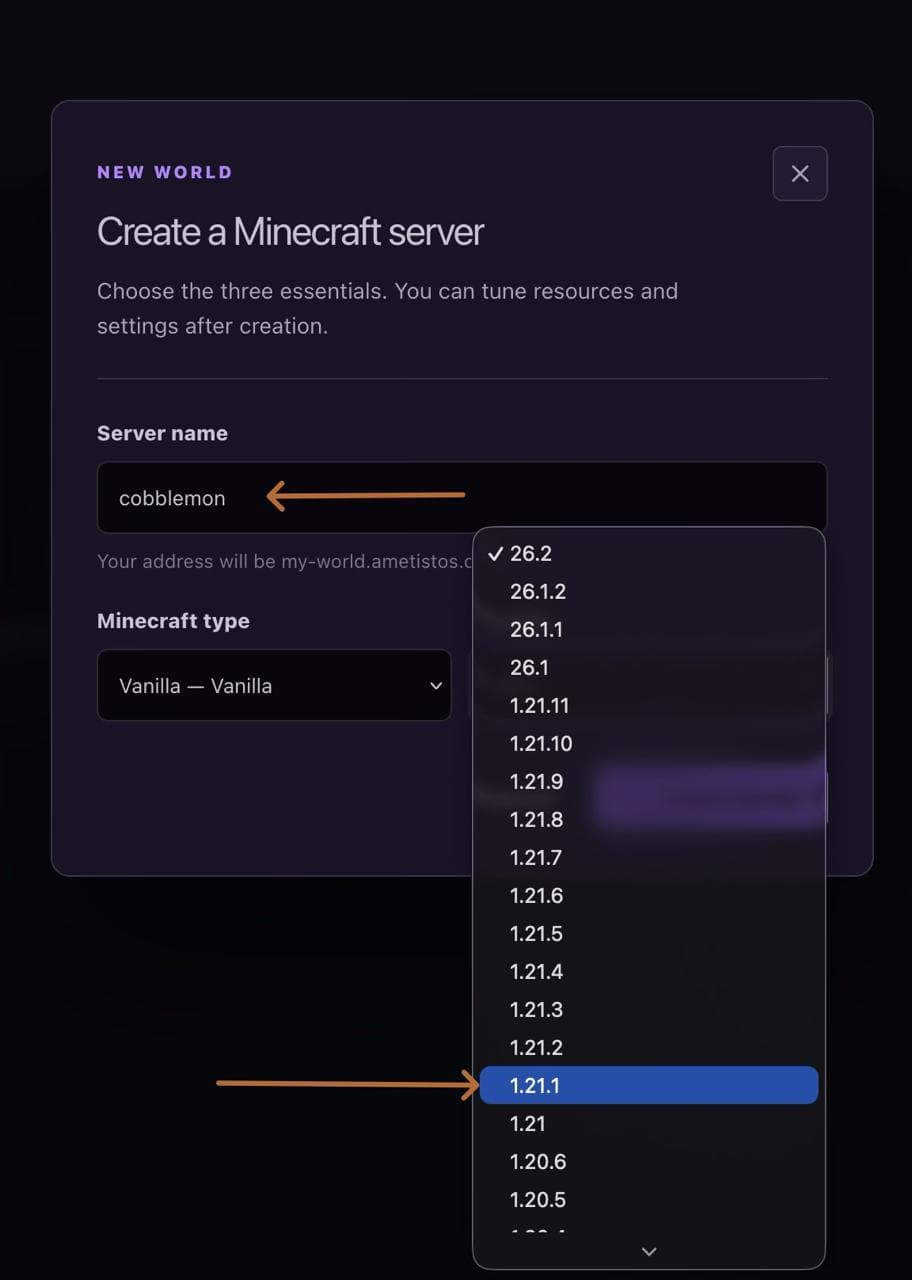
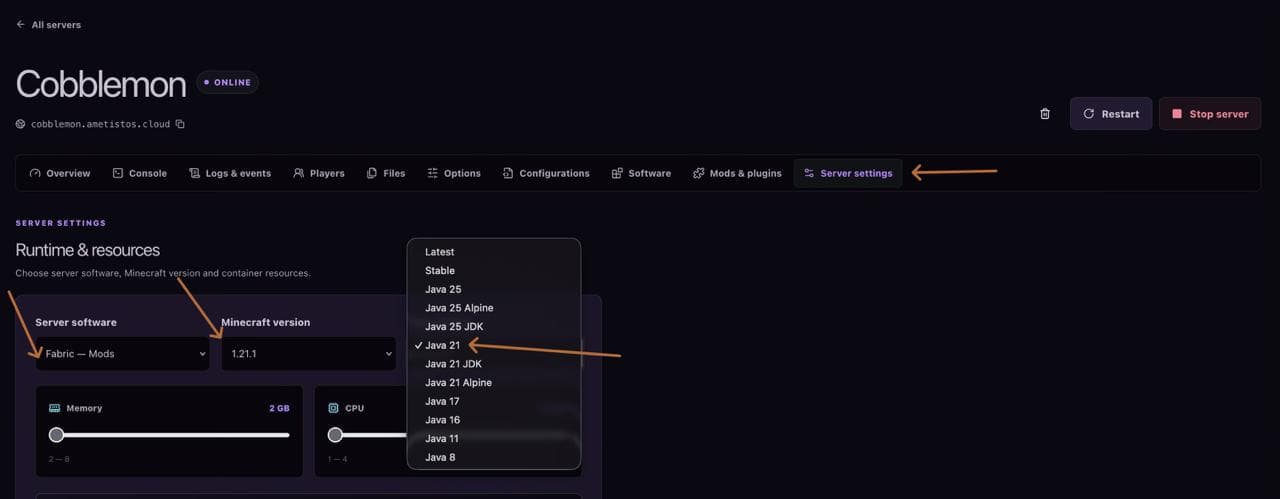
Create a new server, choose a clear name, and select the exact Minecraft release supported by the modpack. A server and client using different versions will usually fail to connect.
Select the Matching Mod Loader
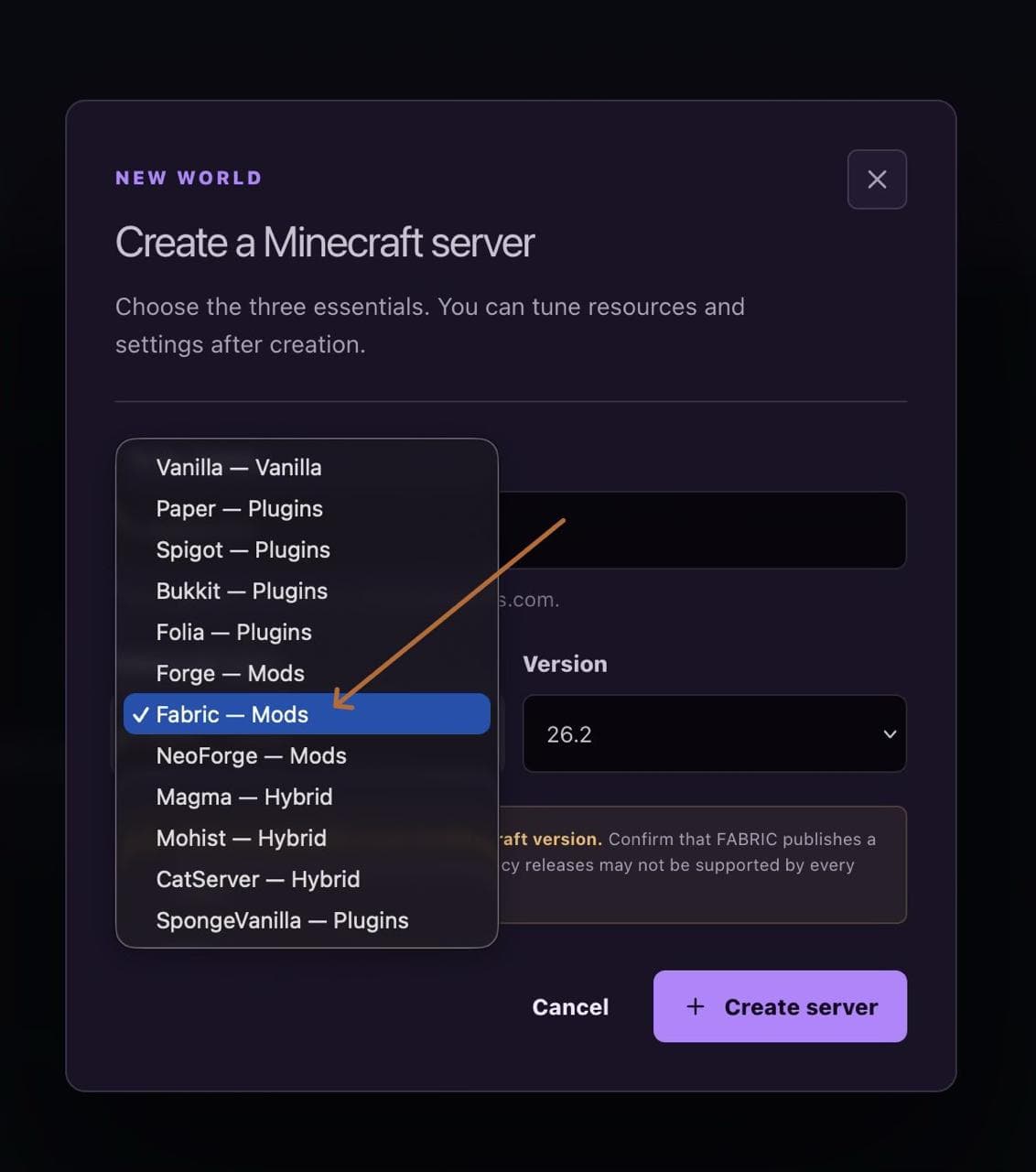
Choose the platform required by the pack. Do not select Fabric for a Forge build, or Forge for a NeoForge build, even when the Minecraft version is the same.
Allocate Enough RAM and CPU
Open Server settings before installation and increase resources when the modpack requires them. More configured RAM consumes credits faster, and the panel updates the estimated play time before you save.
Select a Compatible Java Version
Choose the Java runtime required by the Minecraft and modpack release. The example uses Java 21. If the project documentation does not state a Java version, check the loader documentation and the Minecraft release requirements before starting the server.
Find and Review the Modrinth Modpack
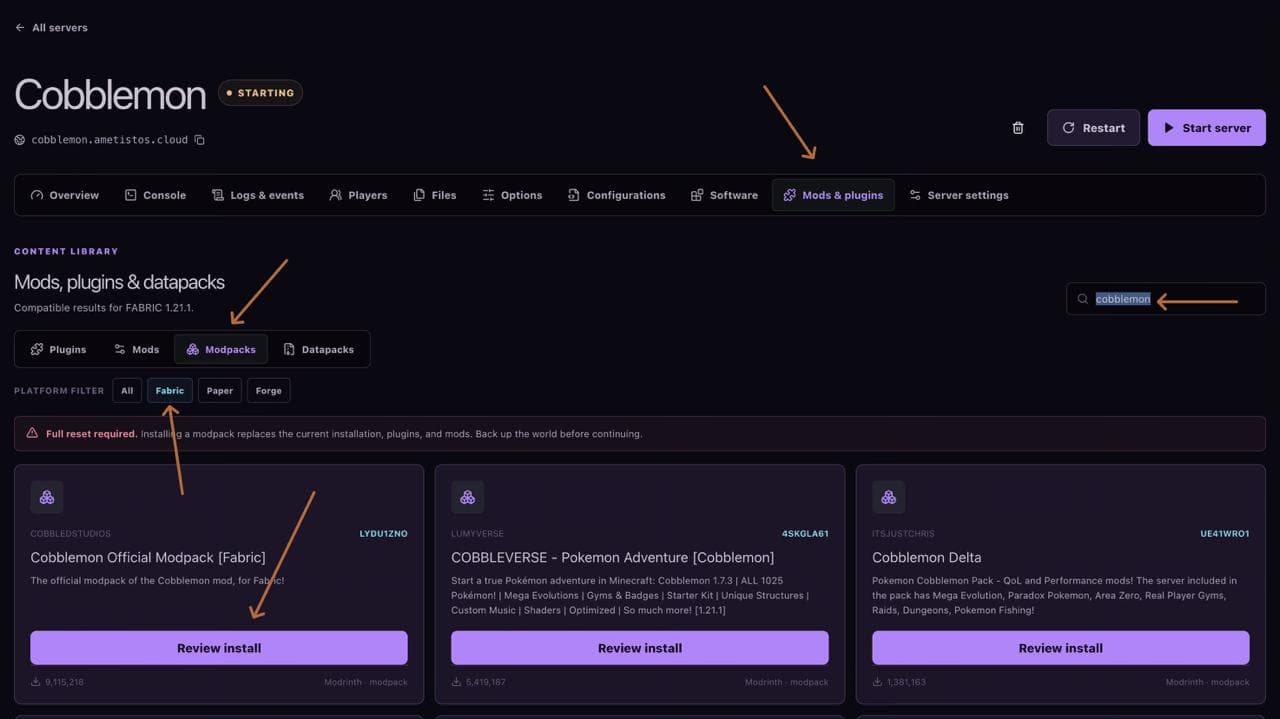
- Open Mods & plugins.
- Select Modpacks and the required platform filter.
- Search for the project name.
- Select Review install on the correct result.
- Verify the project, loader, and Minecraft version one more time.
Confirm the Required Full Server Reset
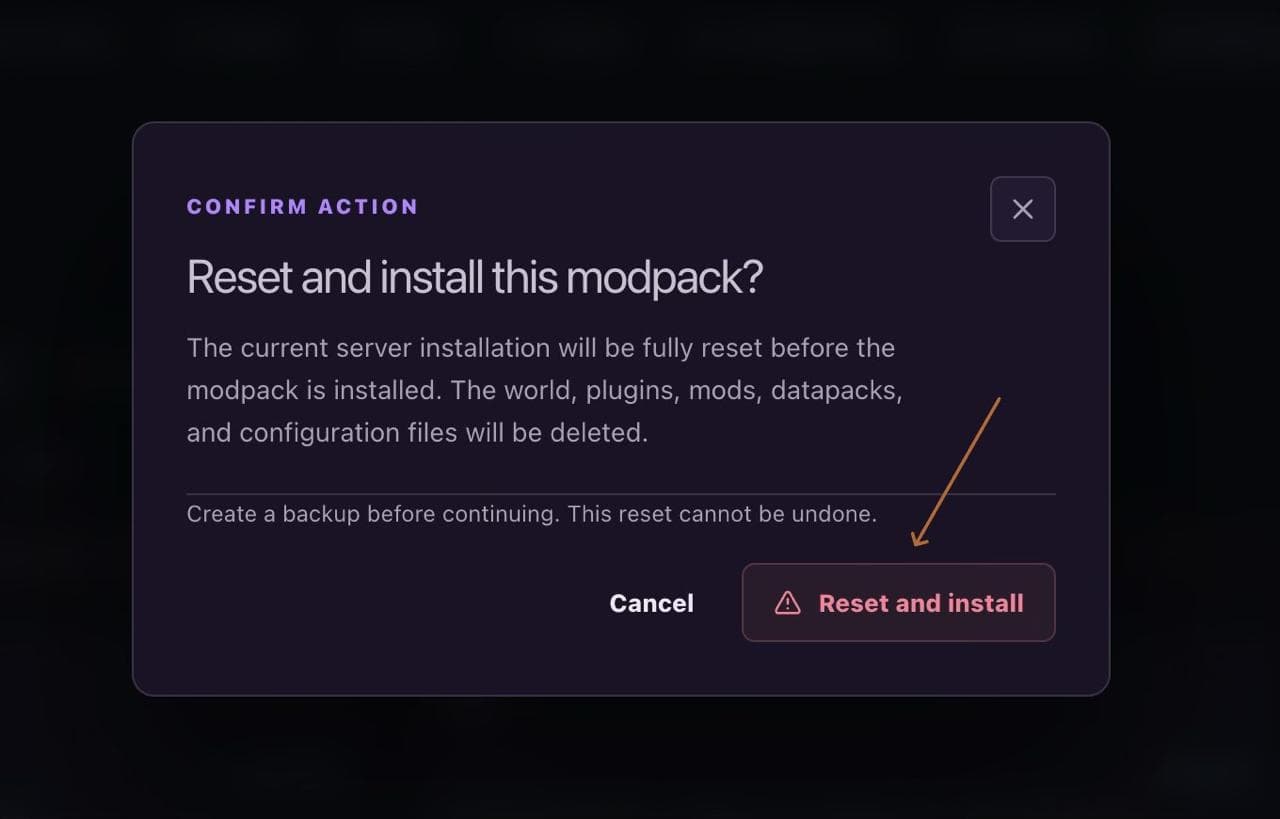
Installing a modpack replaces the current installation. The world, plugins, mods, datapacks, and configuration files are deleted. Download anything you need before continuing; the reset cannot be undone.
Follow Download and Installation Progress
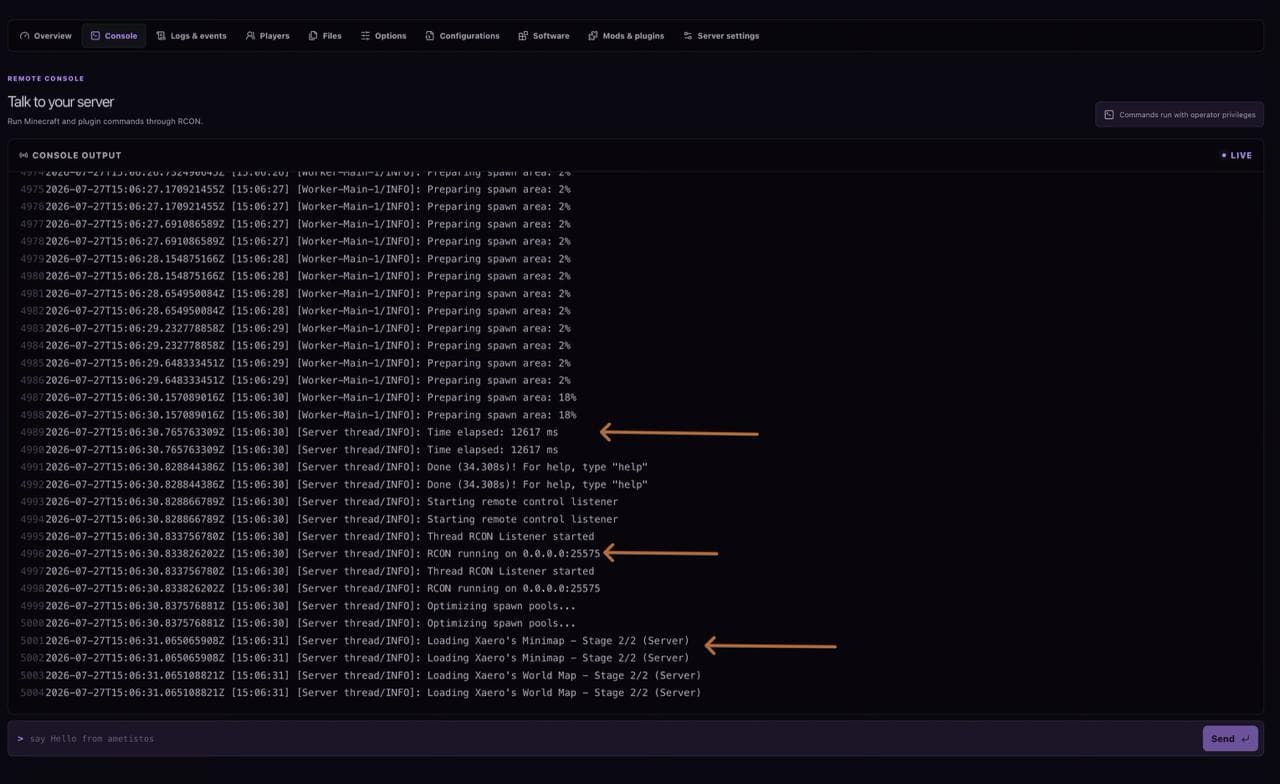
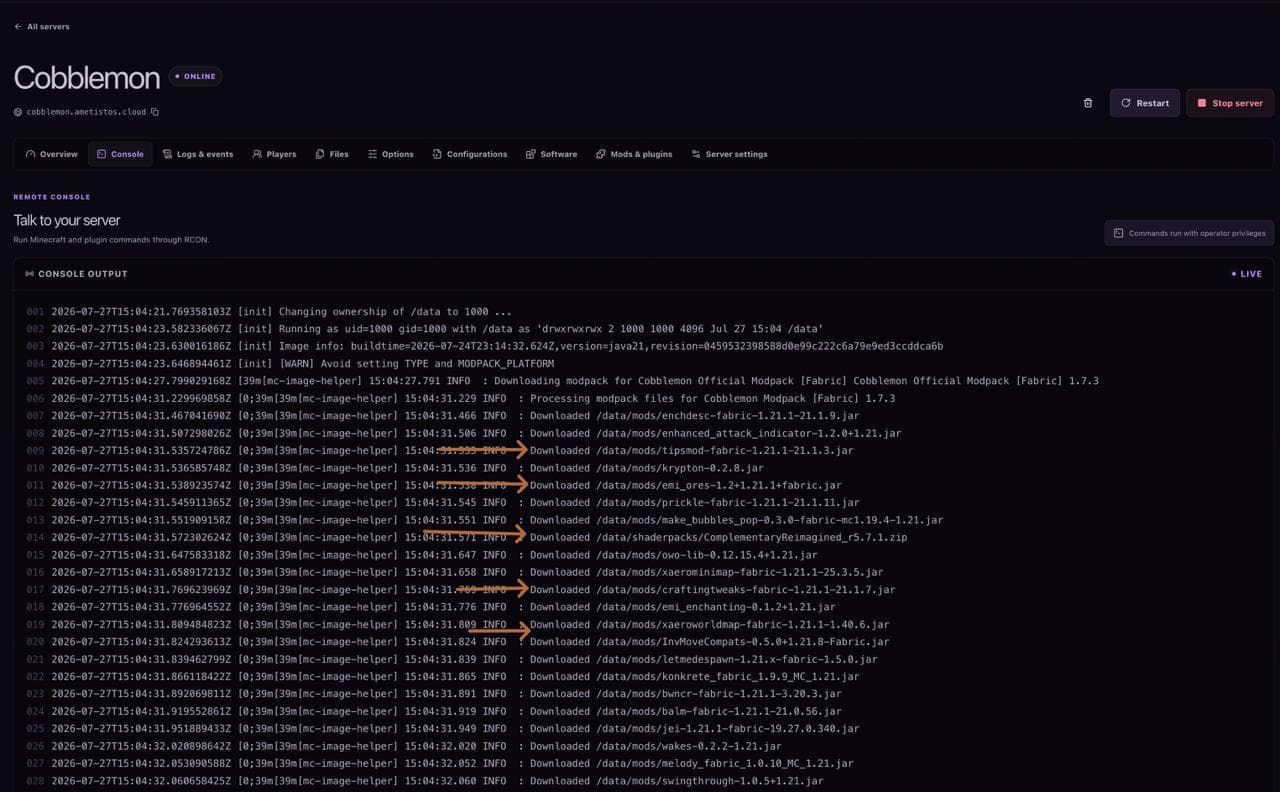
Open the live console after confirmation. A successful installation downloads the modpack files and starts the selected loader. Large packs can take longer during the first launch while files and the world are prepared.
Confirm the Modded Server Is Online
Wait for startup completion and the RCON listener. Then connect with a Minecraft client using the identical modpack release. If startup fails, read the first relevant console error and recheck loader, game version, Java, memory, and dependencies.